Trading journal for MetaTrader 5
Automatically import your MT5 trades into Trading Journal with our free read-only connector. No more manual entry: every closed position is recorded and analyzed for you.
TradingJournalSync.ex5 — v1.10 · 100% read-only — can never trade
What is MetaTrader 5?
MetaTrader 5 (MT5) is the world's most widely used trading platform for Forex, CFDs, indices and commodities. Developed by MetaQuotes and offered free by most brokers, it lets you place orders, analyse charts and run automated programs.
Millions of traders use it daily. But MT5 doesn't include a real trading journal with performance analysis — that's exactly what Trading Journal adds to your account.
Which brokers use MetaTrader 5?
MT5 is offered by hundreds of brokers worldwide. Here are some of the best-known ones (alphabetical order):
Admirals
Regulated European broker (formerly Admiral Markets) offering MT5 on Forex, indices, shares and ETFs.
Alpari
Long-established international broker offering MT5 with standard and ECN accounts.
AvaTrade
Multi-regulated broker present in many countries, offering MT5 alongside its own apps.
Deriv
Online platform (formerly Binary.com) offering MT5 on Forex, synthetic indices and commodities.
Exness
International broker offering MT4 and MT5 on Forex, metals and CFDs, with standard and professional accounts.
FP Markets
Regulated Australian broker offering MT5 on Forex, indices, metals and share CFDs.
FxPro
Regulated broker (FCA, CySEC) offering MT5 alongside MT4 and cTrader.
HFM
Multi-regulated broker (formerly HotForex) offering MT5 across many markets, on demo and live accounts.
IC Markets
Australian broker known for tight spreads, offering MT5 on Forex, indices, commodities and shares.
Pepperstone
Regulated broker (ASIC, FCA) offering MT5 alongside MT4 and cTrader.
RoboForex
International broker offering MT5 with a wide range of account types and markets.
ThinkMarkets
Regulated broker (ASIC, FCA) offering MT5 on Forex, indices, metals and crypto CFDs.
Vantage
International broker offering MT5 for Forex, indices, gold and share CFDs.
XM
Global broker offering MT5 with demo and live accounts, popular for low minimum deposits.
This list is far from complete — hundreds of other MT5-compatible brokers exist. It is provided for information only: Trading Journal is not affiliated with any broker and recommends none. If your broker offers MetaTrader 5, our connector works with it.
See the full MT5 broker listWhat is an Expert Advisor (EA)?
An Expert Advisor is a small program that runs inside MetaTrader 5. EAs usually automate trading strategies, but they can also perform utility tasks: alerts, reports, data synchronization.
The Trading Journal connector is a utility EA: once attached to an MT5 chart, it reads your transaction history and sends it to your journal, in the background.
A 100% read-only connector
The connector can never open, modify or close a trade. It contains no order functions and never asks for your MT5 password — only an API key generated from your Trading Journal account, revocable at any time.
Why connect MT5 to Trading Journal?
Automatic import
Every position closed on MT5 becomes a trade in your journal, without typing anything.
No manual entry
No more copy-pasting trades every evening — synchronization happens by itself.
Complete history
Your entire MT5 history is imported and kept in the journal.
Continuous sync
The connector checks for new transactions every minute, automatically.
Advanced statistics
P&L, win rate, drawdown, performance calendar, per-instrument analysis — everything is computed for you.
Multi-broker
Several MT5 accounts from different brokers can feed the same journal.
How to connect MT5 to Trading Journal: step-by-step guide
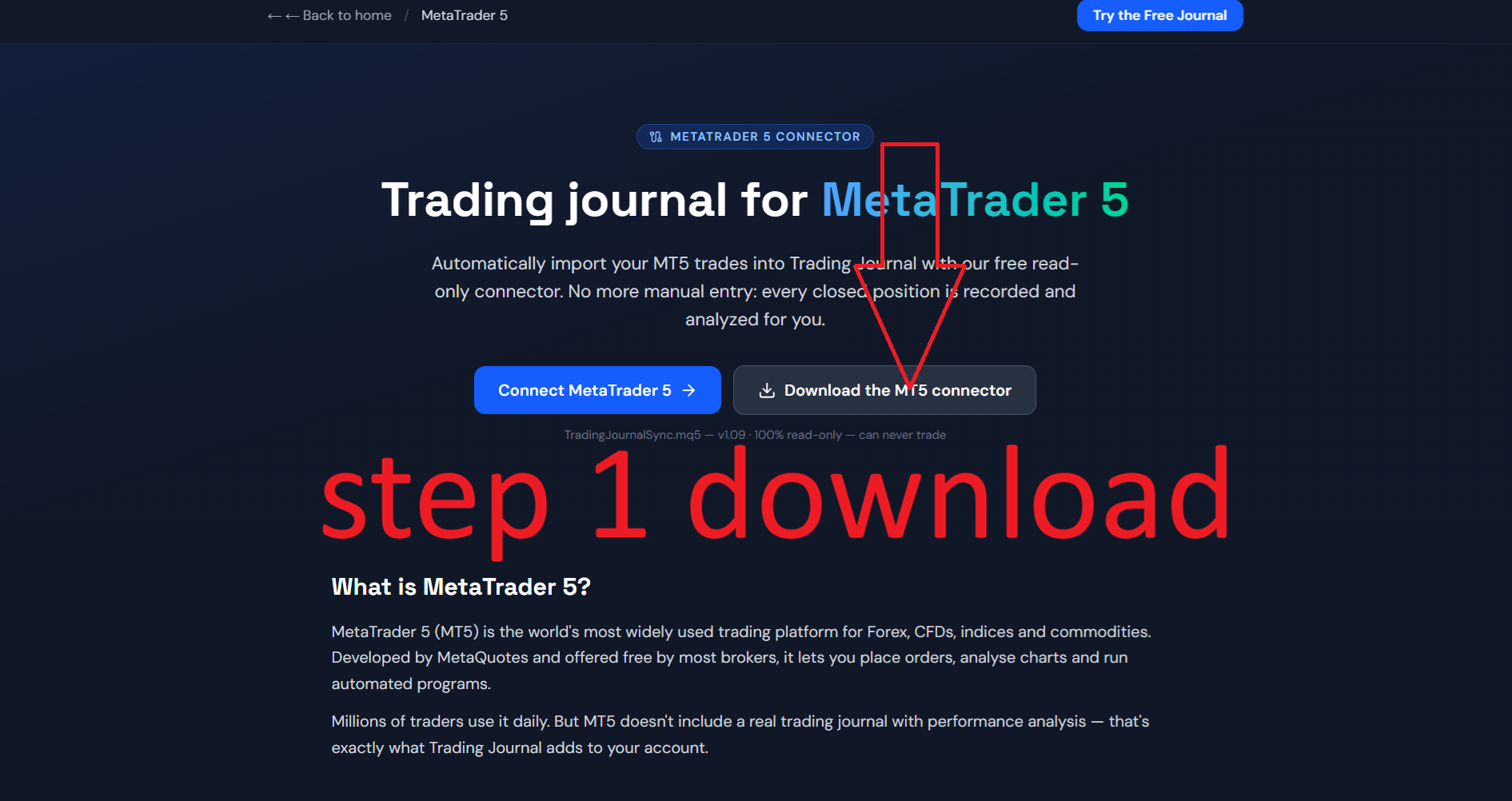
1.Download the connector
Click "Download the MT5 connector" to get the latest compiled TradingJournalSync.ex5 version.
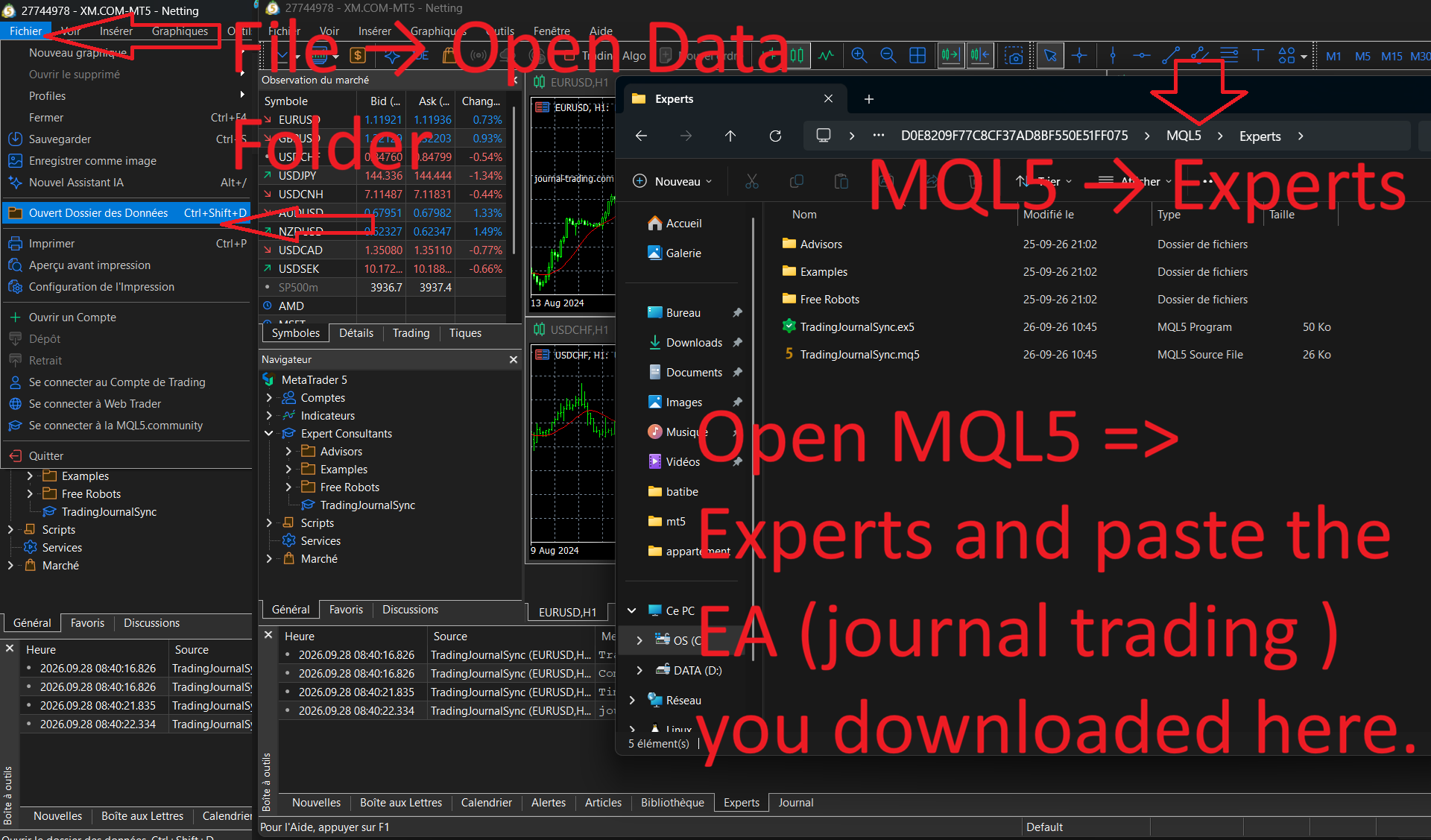
2.Install the EA in MT5
In MetaTrader 5: File → Open Data Folder → MQL5 → Experts. Copy the .ex5 file there, then restart MT5 or refresh the Expert Advisors list. No compilation is required.
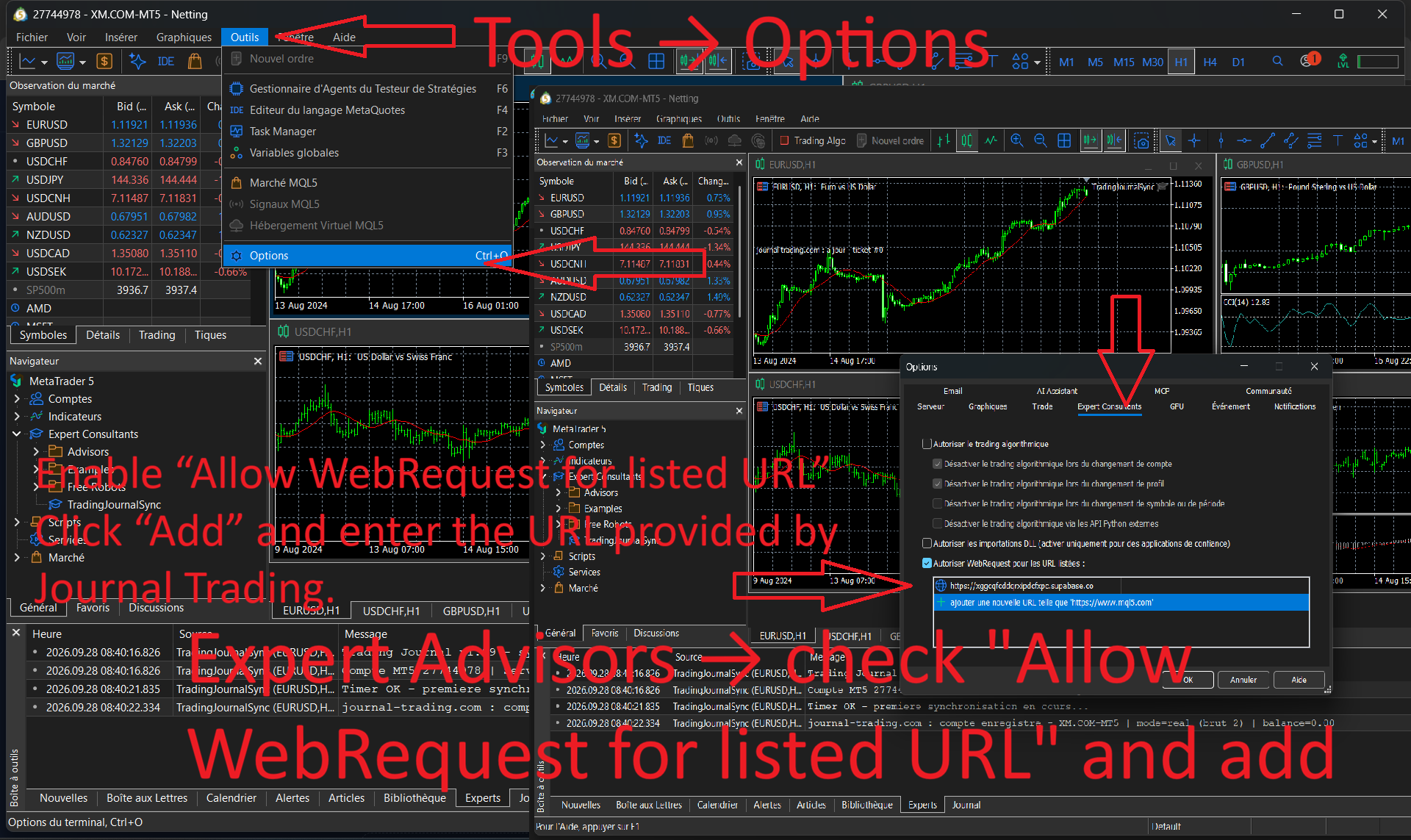
3.Allow WebRequest
In MT5: Tools → Options → Expert Advisors → check "Allow WebRequest for listed URL" and add https://xggcqfcddqrxipdcfxpc.supabase.co
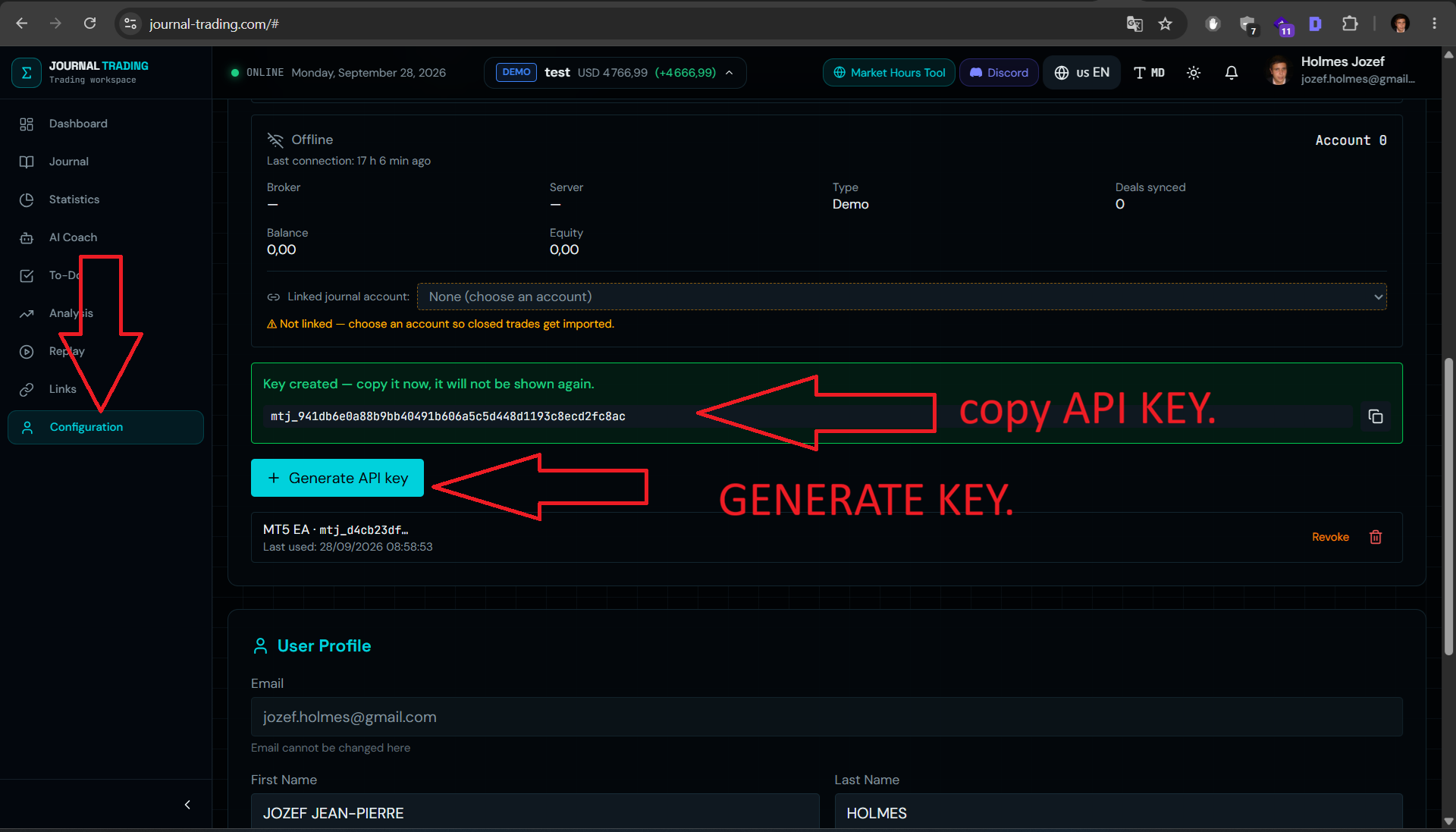
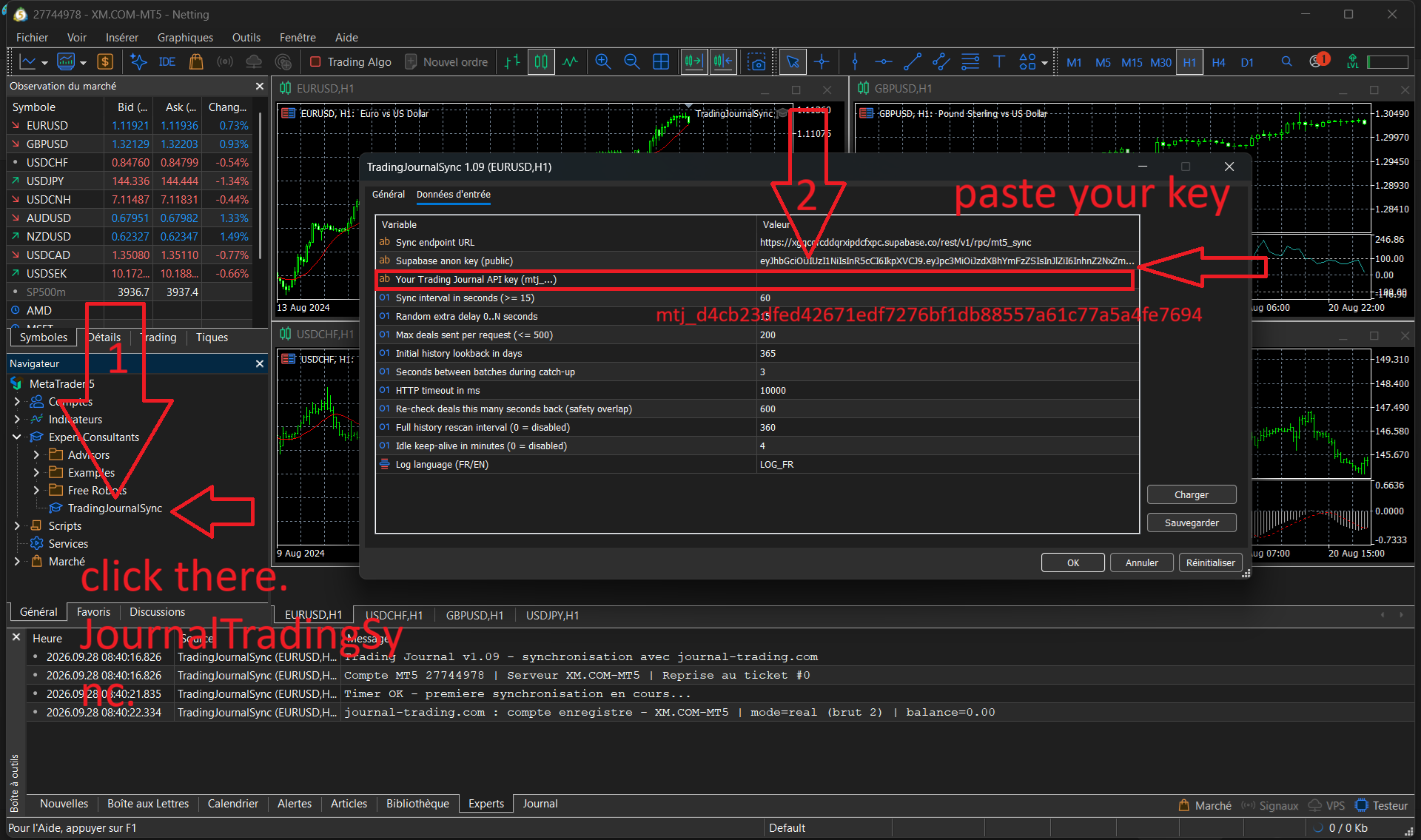
4.Copy your API key
On Trading Journal: Configuration → MetaTrader 5 Connector → "Generate API key". Copy the mtj_... key shown (it is displayed only once).
5.Enter the key in the EA
Drag TradingJournalSync onto any MT5 chart, open the parameters (F7) and paste your key into the InpApiKey field. Confirm.
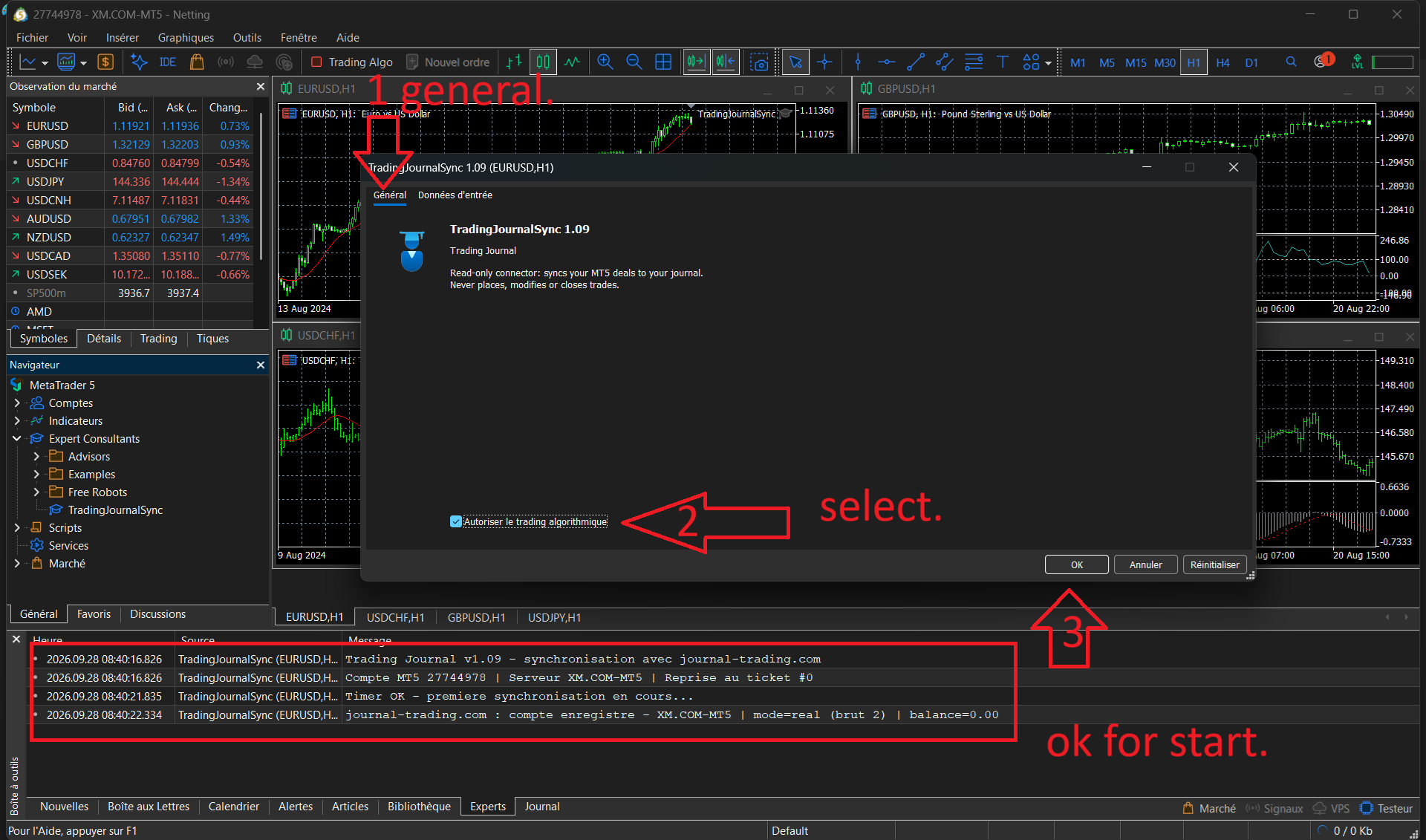
6.Start the EA
Make sure the "Algo Trading" button is enabled (green) in the MT5 toolbar. The EA starts syncing within seconds.
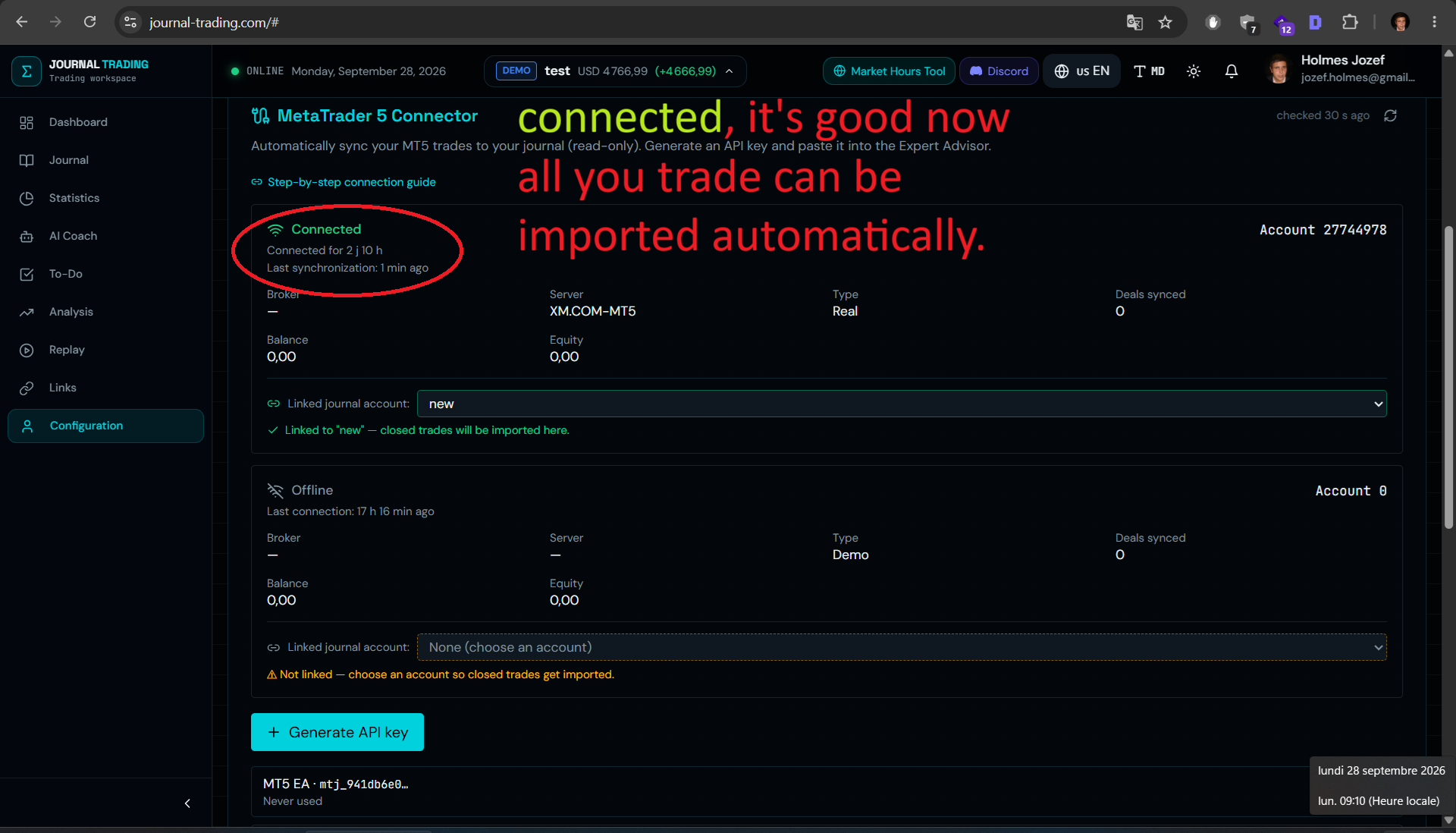
7.Check the connection
Back on Trading Journal: your MT5 account shows as "Connected" with its number, broker and last sync time. Close a position on MT5: it appears in your journal on the next sync.
Latest connector version
TradingJournalSync.ex5 — v1.10
Your MT5 connection status
Log in to see the status of your synced MT5 accounts.
Connect MetaTrader 5Frequently asked questions
Ready to journal your MT5 trades?
Create your free account, generate your API key and let the connector import your MetaTrader 5 history in minutes.